1. Comic Opening
Comic text version (scenes and dialogue)
| Panel | Scene | Dialogue |
|---|---|---|
| 1 | Mac types https://example.com/ into the address bar, finger about to press Enter. Pip has the backpack on. |
Caption: "The final lesson: follow Pip all the way through the whole journey!" Mac: "Pressing Enter now!" Pip: "Backpack on, let's go!" |
| 2 | Dr. Lookup hands over an answer card, example.com → 192.0.2.80. Octo sends Pip to Rue's port. |
Caption: "First look up the name, then deliver Pip to Rue across the home LAN (Local Area Network)." Dr. Lookup: "Let me look that up... 192.0.2.80!"Octo: "Got it! Delivering to the right port right now!" |
| 3 | Rue changes the sender to 203.0.113.1. Pip has a padlock above his head, meaning HTTPS (HTTP Secure). He passes several Routers on the way to the server building 192.0.2.80. |
Rue: "This way, this is the fastest route!" Caption: "Through NAT (Network Address Translation), station after station of Routers, and protected by HTTPS encryption." |
| 4 | The web page appears on Mac's screen, with a padlock by the address bar. All the characters cheer. Professor Arpa holds a scroll. | Caption: "The page is here! Every character did their part." Professor Arpa: "A long, long time ago... telegrams were tapped out one letter at a time. Today, a whole web page takes just one second!" Mac: "Check out my web page!" |
2. Key Idea
Opening a website seems to take just a second, but everything you learned in the first nine lessons shows up.
First you join the network over Wi-Fi, and DHCP (Dynamic Host Configuration Protocol) hands out addresses. DNS (Domain Name System) turns the name into an IP Address. TCP (Transmission Control Protocol) shakes hands to set up a connection, and HTTPS encrypts it. Finally the browser asks the server for the page using HTTP (Hypertext Transfer Protocol) and draws it on the screen.
Along the way, Switches, Routers and NAT all help deliver the goods.
3. A Closer Look
Want to see it animated? Network Stories 16. The Network Doctor Makes a House Call: ICMP, Ping and Traceroute and 17. The Sealed Letter: HTTPS and TLS (Transport Layer Security)
First, read the address: the URL
What you type into the address bar, https://example.com/, is called a URL (Uniform Resource Locator). It is the full address of something on the web. It has three parts:
| Part | Example | Meaning |
|---|---|---|
| Scheme | https |
How to fetch the data. https means encrypted, with a default Port of 443 |
| Host name | example.com |
Which server to go to. DNS is needed to find its IP Address |
| Path | / |
Which page on the server. / means the home page |
The full journey: eight steps
Here is the whole process of Mac opening https://example.com/ at home. Each step says which lesson it came from.
Step 1: Join the Wi-Fi (Lesson 6) Mac's computer finds the home SSID, enters the password and connects to the Access Point. The data sent through the air is encrypted, for example with WPA2 or WPA3 (Wi-Fi Protected Access). Even if a neighbour picks up the signal, they can't read it.
Step 2: DHCP hands out addresses (Lesson 8)
Mac broadcasts a Discover, Rue replies with an Offer... and after the four DORA steps, Mac gets: IP Address 192.168.1.10, Default Gateway 192.168.1.1, DNS server 192.168.1.1.
Step 3: ARP (Address Resolution Protocol) finds Rue's name tag (Lesson 6)
From now on, everything Mac sends has to go to 192.168.1.1 first. He uses ARP to broadcast: "Who is 192.168.1.1?" Rue replies with her MAC Address, 00:00:5E:00:53:FE.
Step 4: DNS looks up the name (Lesson 7)
The browser first checks its Cache for an answer for example.com. If there isn't one, it asks the DNS server. The query goes through the Root Server, the .com TLD (Top-Level Domain) server and the Authoritative Server, and comes back with the answer: 192.0.2.80. This query is sent using UDP (User Datagram Protocol) on Port 53.
Step 5: TCP three-way handshake (Lesson 9)
Mac sees that 192.0.2.80 is not in his own Subnet, so he hands the Packet to the Default Gateway (Lesson 4). He sends a SYN to 192.0.2.80:443, gets a SYN-ACK back, and replies with an ACK. The connection is set up.
All the way along:
- Octo (the Switch) reads the MAC Address and delivers the Frame to Rue (Lessons 3 and 6).
- Rue does NAT, changing the sender from
192.168.1.10:50000to203.0.113.1:40001(Lesson 8). - Routers on the Internet pass it on station by station. At each one the Frame is replaced and the TTL (Time to Live) goes down by 1, while the IP receiver stays
192.0.2.80throughout (Lesson 5).
Step 6: TLS encryption handshake (this lesson)
Because the address is https, both sides must first agree how to encrypt. This step uses TLS (Transport Layer Security). The server presents a Digital Certificate to prove "I really am example.com". Once the browser has checked it, the two sides agree on a key that only they know, and everything after that is encrypted. The padlock beside the address bar marks that this step succeeded.
Step 7: HTTP asks for the page (this lesson)
Over the encrypted connection, the browser sends an HTTP request: "GET /, please give me the home page." The server replies "200 OK" and attaches the page content. The page is written in HTML (Hypertext Markup Language).
Step 8: The browser draws the page The browser reads the HTML and finds it also needs pictures, styles and programs, so it asks the server for those files too, usually reusing the connection that is already open. When everything has arrived, the full page appears on the screen.
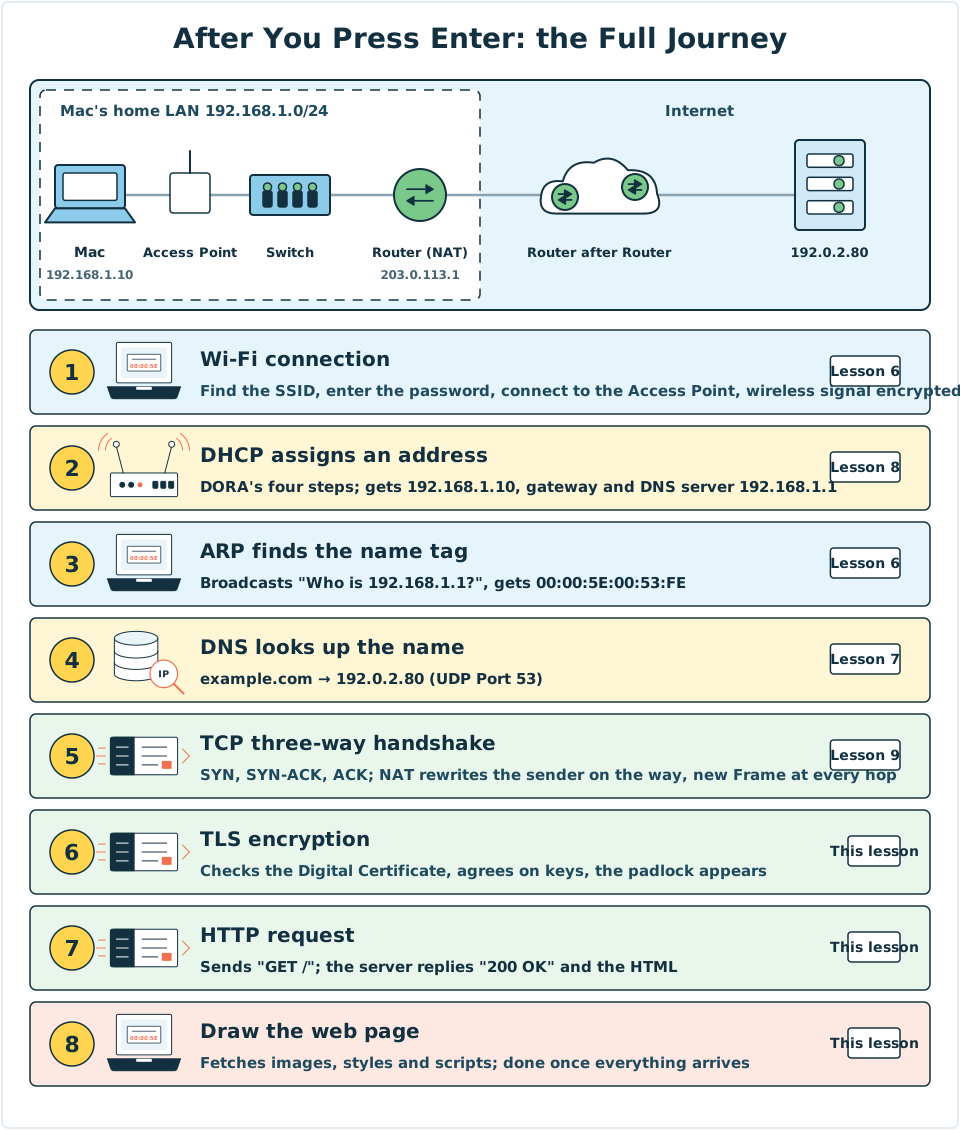
Diagram: the top is the route map. The dashed box is Mac's home LAN, and the Internet is on the right. The bottom shows the eight steps, with the character in charge and the lesson where each was learned.
HTTP reply codes
Every time the server replies, it attaches a three-digit status code. You may have seen some of these:
| Status code | Meaning |
|---|---|
200 OK |
Success, here is the page |
301 / 302 |
The page has moved, please go to the new address |
404 Not Found |
That page can't be found |
500 |
The server itself has a problem |
What is the difference between HTTP and HTTPS?
| HTTP | HTTPS (HTTP Secure) | |
|---|---|---|
| Default Port | 80 | 443 |
| Content encrypted | No, anyone along the way can see it | Yes, encrypted with TLS |
| Proves the server's identity | No | Yes, using a Digital Certificate |
| Analogy | Postcard | Sealed envelope |
Today the great majority of websites use HTTPS. If your browser warns you a page is "Not secure", don't type passwords or credit card details into it.
Whole-course review
| Job on the journey | Technology in charge | Character | Lesson |
|---|---|---|---|
| Cut data into small pieces, wrapped layer by layer | Packet, Encapsulation | Pip | Lesson 5 |
| Tell who is who inside a LAN | MAC Address | Mac | Lesson 3 |
| Deliver goods inside a LAN | Switch | Octo | Lesson 6 |
| Find a MAC Address from an IP Address | ARP | Mac, Rue | Lesson 6 |
| Hand out addresses and settings | DHCP | Rue | Lesson 8 |
| Turn names into addresses | DNS | Dr. Lookup | Lesson 7 |
| Say "where you are" | IP Address | Mac, Rue | Lesson 4 |
| Show the way between networks | Router, Routing Table | Rue | Lesson 6 |
| Let the whole home share one Public IP | NAT | Rue | Lesson 8 |
| Guarantee delivery, find the right program | TCP, Port | Pip | Lesson 9 |
| Where all this came from | ARPANET, TCP/IP | Professor Arpa | Lesson 2 |
4. Try It Yourself
Task 1: Look at the certificate behind the padlock
- Open any
httpswebsite in your computer's browser. - Click the padlock (or settings icon) beside the address bar, then choose "Connection is secure" → "Certificate is valid" (the wording differs a little between browsers).
- See which domain the certificate was issued to, who issued it and when it expires.
Task 2: Peek at requests with developer tools
- In Chrome, Edge or Firefox on a computer, press
F12(on a Mac, pressCmd + Option + I) and choose the "Network" tab. - Keep the tools open and reload the page.
- You will see a long list of requests. The first line is usually the page itself, followed by pictures, styles and programs.
- Look at the "Status" column. Are most of them
200? How many requests does one page need?
These tools only let you see what your own browser sends and receives. They don't change the website.
Mini activity: put the journey in order
Put the eight steps of opening a website in the right order.
5. Where the Analogy Breaks
- Not every visit needs all eight steps. Wi-Fi and DHCP are usually done long before. The answers for ARP and DNS are often already in the Cache. So on an ordinary day, opening a page often starts at the TCP step, or even reuses an old connection.
- There is more than one Pip. A single page often needs dozens or even hundreds of requests. Each request and reply is made of many Packets, and they may arrive over several connections at once.
- A page doesn't always come from one server. Pictures, videos and ads often come from other domains. Each domain needs another DNS lookup and another connection.
- A padlock doesn't mean the website can be trusted. It only proves that "the connection is encrypted and the server really is this domain". Scammers can also get certificates for their own domains, so you still need to read the address carefully.
- The newer HTTP/3 doesn't use TCP. It uses QUIC, built on top of UDP, which merges Step 5 and Step 6 so pages open faster.
6. Quiz
7. Key Notes
- A URL is made of a Scheme, a host name and a path, for example
https://example.com/. - The eight steps of opening a website: Wi-Fi → DHCP → ARP → DNS → TCP three-way handshake → TLS encryption → HTTP request → the browser draws the page.
- HTTPS encrypts with TLS (Transport Layer Security) and proves the server's identity with a Digital Certificate. A padlock does not mean the website's content can be trusted.
- HTTP replies carry a status code:
200means success and404means not found. - Every character from the first nine lessons played a part in that one second.
Next Stop
Congratulations on finishing all ten lessons! You have gone from a single name tag all the way to the whole Internet.
Want to know more? Go to to see how Octo, Rue and their new friend Pango solve all kinds of problems in real networks.